

Add a theme to Fluxer
Themes are custom CSS that change how the Fluxer client looks. FluxerList lists community-made ones, and each theme page has a button that takes you straight to Fluxer to apply it. You don’t need a FluxerList account to install a theme, but you do need a Fluxer account.
Find a theme
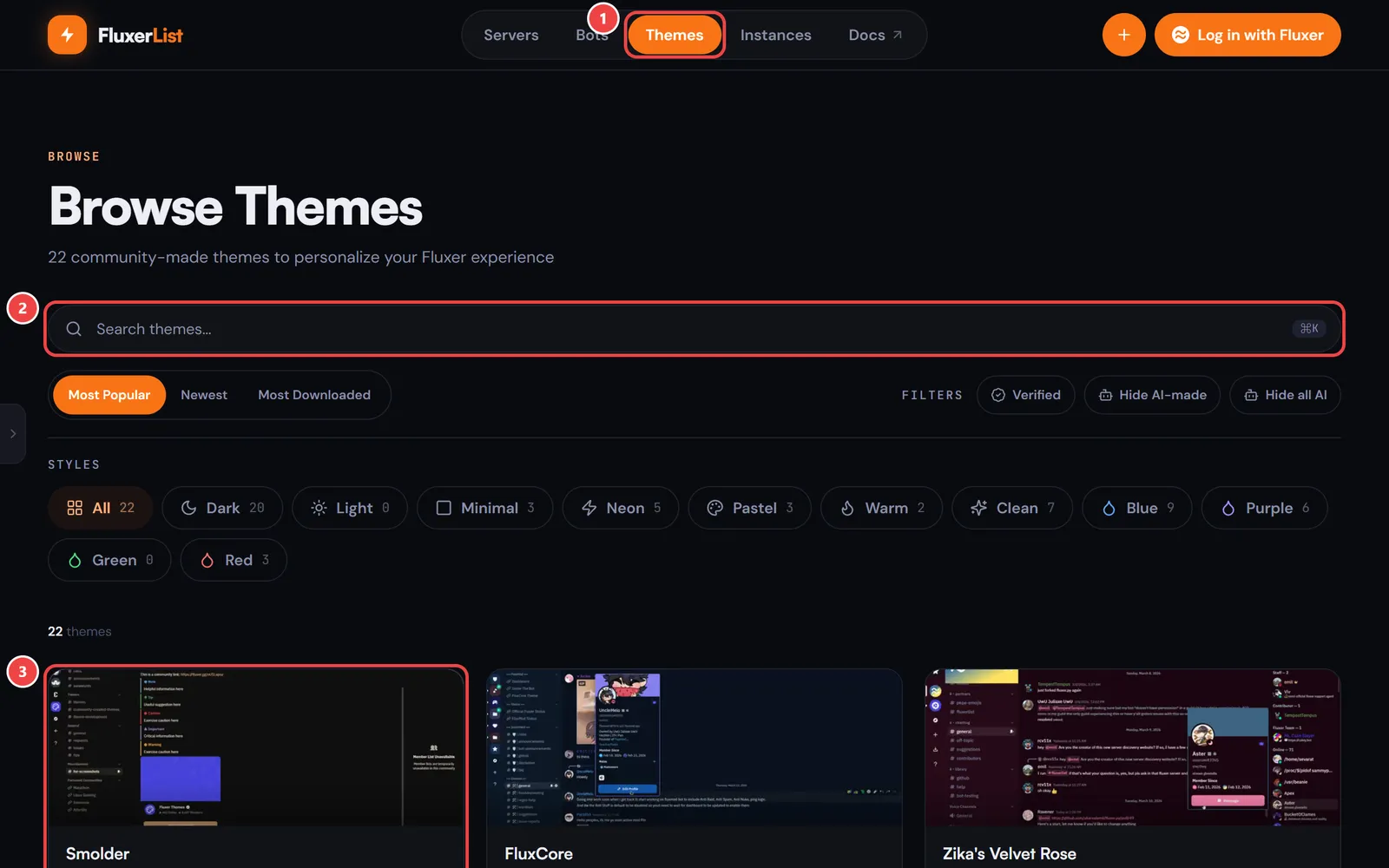
Select Themes in the top bar to open Browse Themes.
- Search by name in the search box.
- Sort by Most Popular, Newest, or Most Downloaded.
- Use the Styles buttons (Dark, Light, Neon, Pastel, and so on) to narrow the list, or the Verified filter to show only verified themes.
Each card is a large tile showing the theme’s preview image, or a preview of the interface in its colours when it has no image. A card also shows the author, a short description, the style tags, its downloads and votes, and its own Get for Fluxer and Vote buttons, so you can apply a theme straight from the list. Select the tile itself to open the theme’s page.
Check the preview
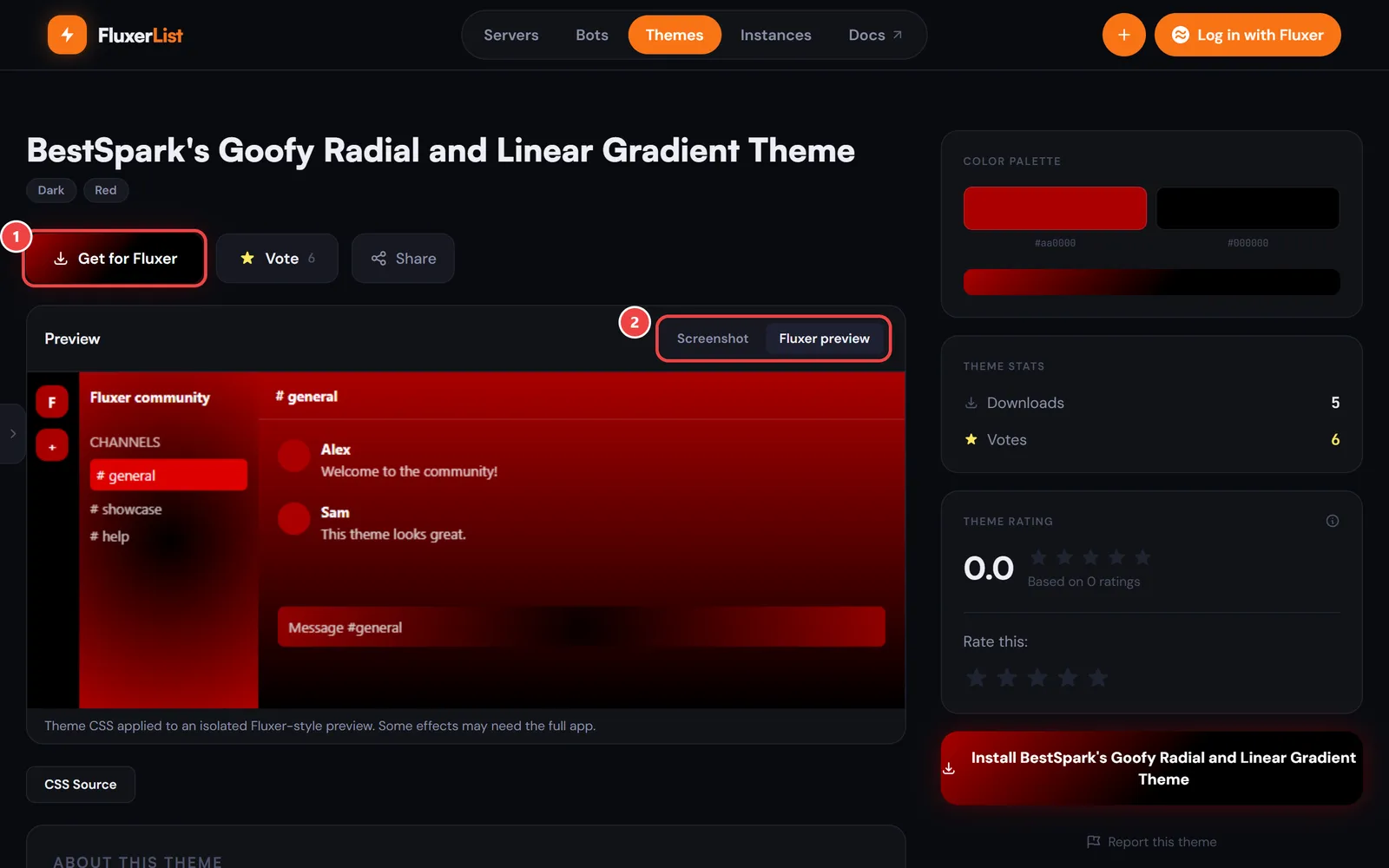
The theme page has the name and style tags at the top, then Get for Fluxer, Vote, and Share. Below them is a large Preview. The sidebar shows the colour palette, downloads and votes, and the rating, and About this theme lists the author, style, and when it was published. Check the preview to make sure it’s what you want.
When a theme has both an uploaded image and CSS, the Preview box has a switch between Screenshot and Fluxer preview. Fluxer preview is an interface preview built from the theme’s CSS, and a CSS Source button under it lets you read the code. Further down there’s a comments section you can read and post in, and more themes in the same style.
Select Get for Fluxer
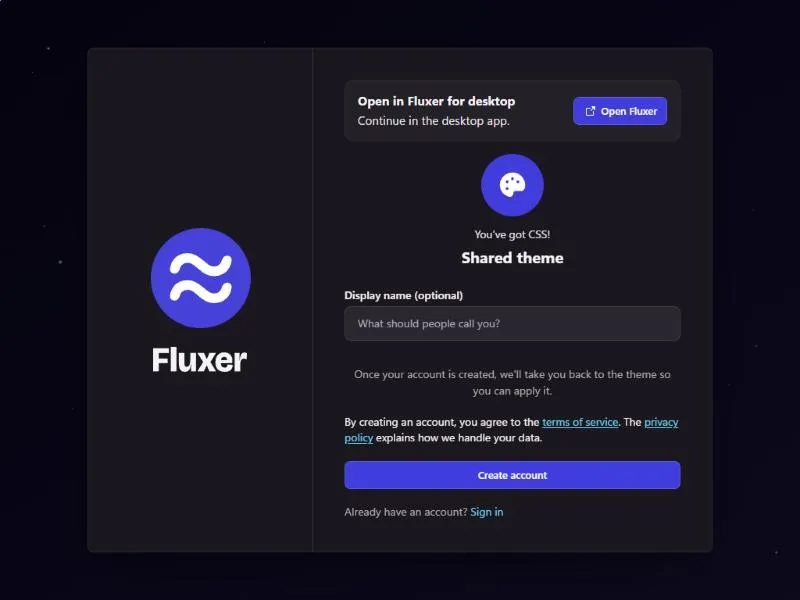
Select Get for Fluxer on the theme’s page or on its card, or the Install button in the sidebar. They all do the same thing. Fluxer opens in a new tab on that theme’s Apply theme page.
Sign in to Fluxer if you’re asked to. If you use the desktop app, choose Open Fluxer to continue there.
Apply the theme in Fluxer
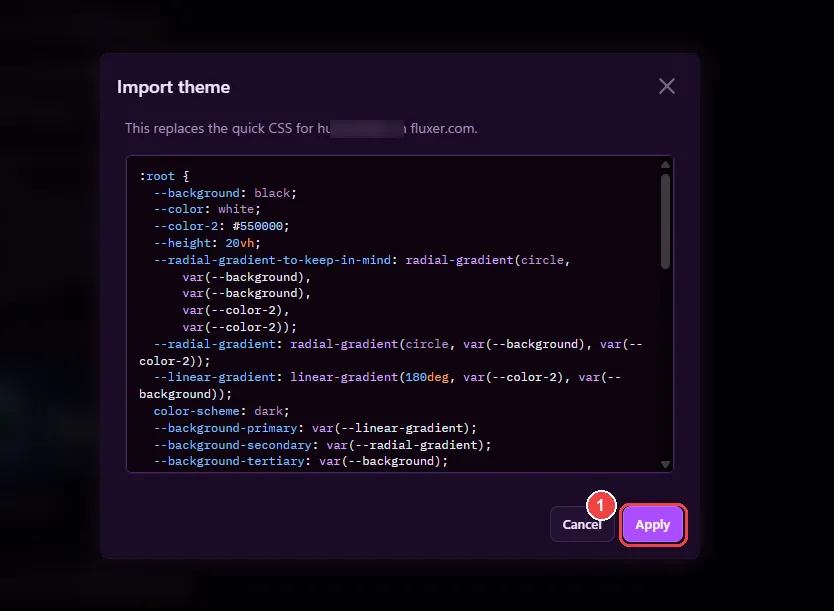
Fluxer opens an Import theme window showing the theme’s CSS. Select Apply (marker 1) to use it, or Cancel to back out.
The message at the top says This replaces the quick CSS on your Fluxer account. If you’ve written your own quick CSS, applying a theme overwrites it, so copy it somewhere first.
A theme only applies where you apply it. If you apply it in your browser, it changes Fluxer on the website only. To get it in the desktop app too, apply it there as well: choose Open Fluxer on the Apply theme page so the desktop app shows this window.
Remove or change a theme
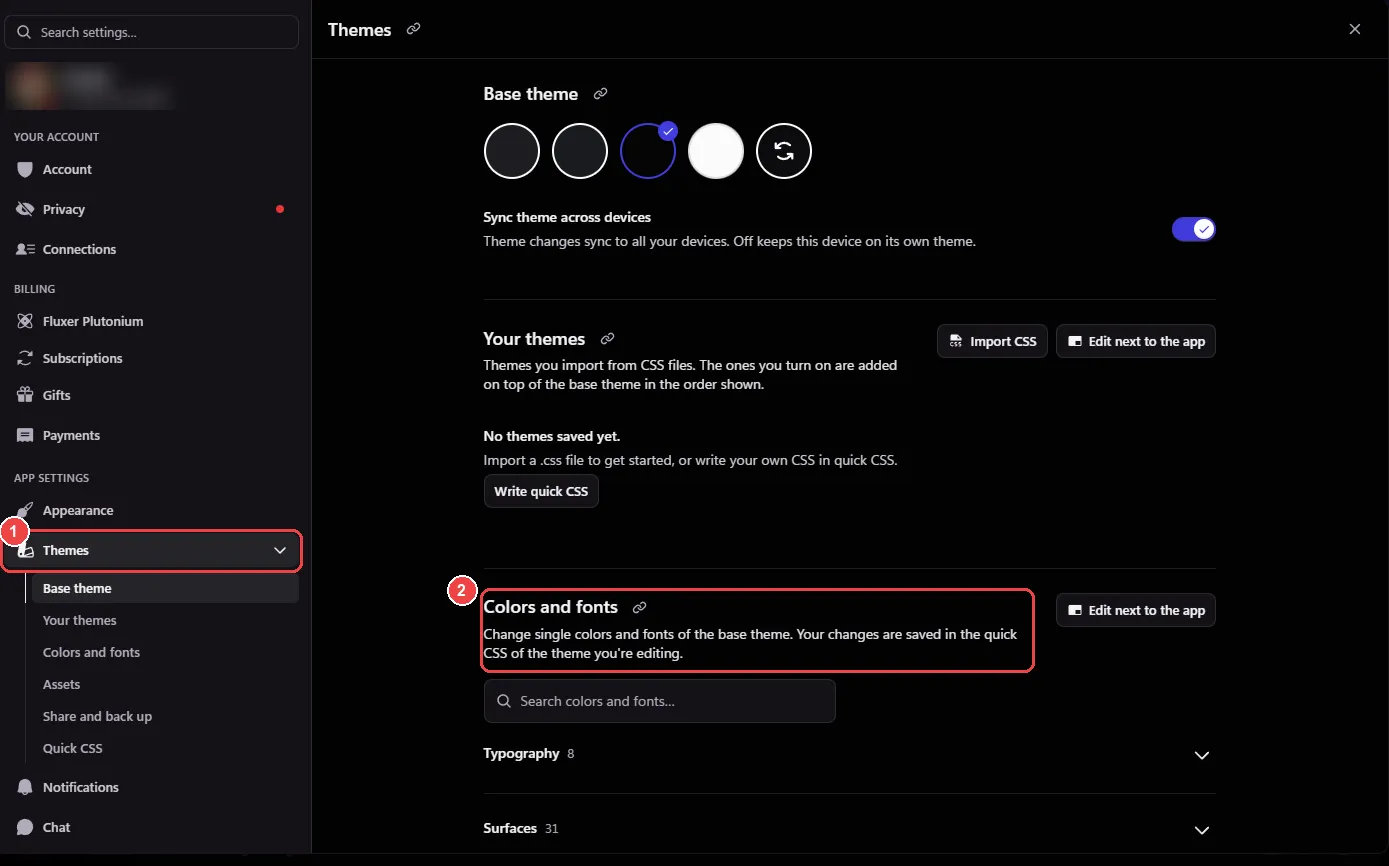
An applied theme shows up in Fluxer as colour, font, and size changes. To remove them, open Settings, then Themes (marker 1), and go to Colors and fonts (marker 2). It shows how many changes there are, like 76 changed, next to Clear all changes. Select it, then confirm in the window that asks Clear all color and font changes? (marker 1 below).
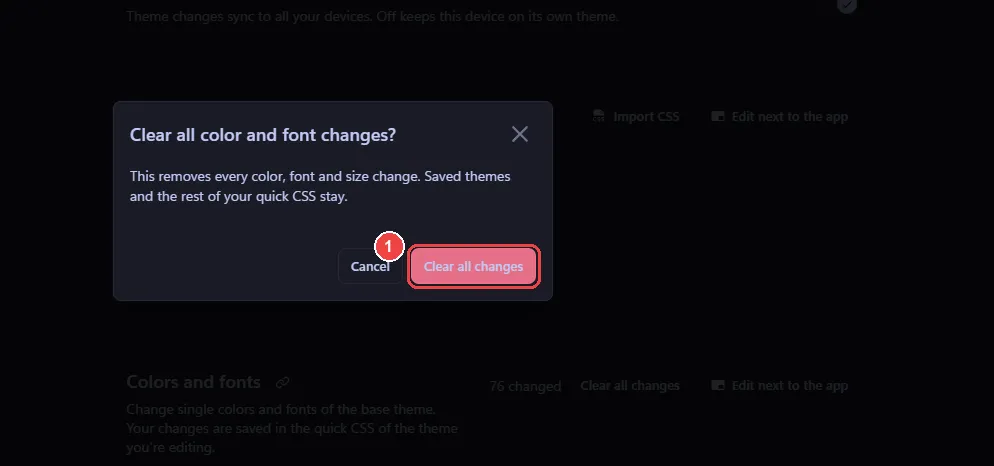
Fluxer says that saved themes and the rest of your quick CSS stay. Do this in each place you applied the theme (the website, the desktop app, or both).
To switch to a different theme, go back to FluxerList, pick another one and select Get for Fluxer again. Applying a new theme replaces the one you had.
Something not working?
- Nothing happens when you select the button. Fluxer opens in a new tab, so your browser may have blocked it. Allow pop-ups for fluxerlist.com and try again.
- A theme looks broken. Themes are written by community members. You can report one from its page with Report this theme.
Want to share your own theme? See How FluxerList works for what a theme listing includes, then select Add listing in the top bar and choose Theme.