

Edit your listing, step by step
You can change a server’s listing at any time, as long as you own it or you’re one of its admins. You need to be signed in (see How do I log in?). Watch the recording once, or follow the steps below.
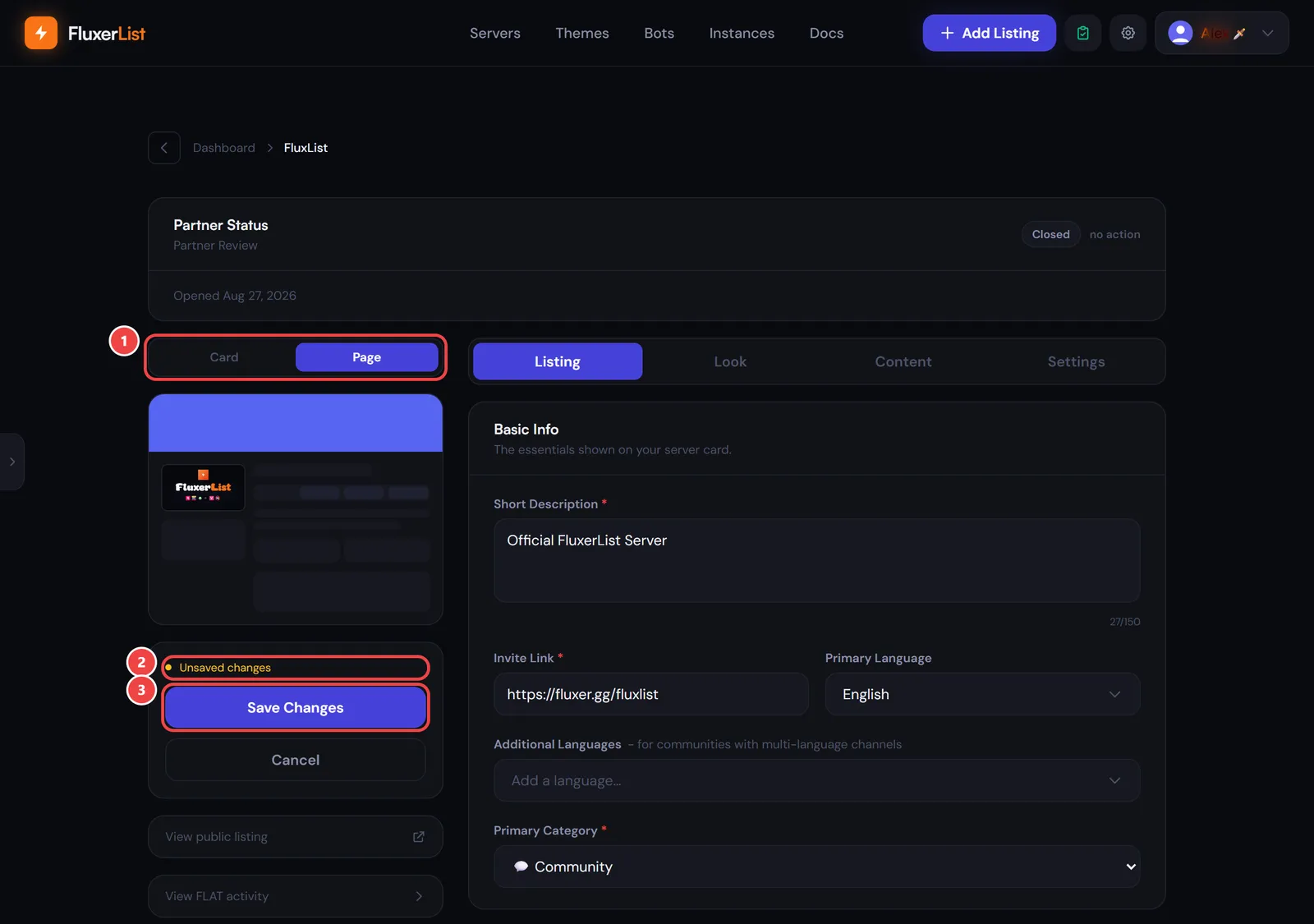
Nothing you type goes live until you select Save Changes. A yellow Unsaved changes marker shows while you have edits waiting. A few controls are the exception and apply the moment you use them. They’re listed at the end of this page.
Open the editor
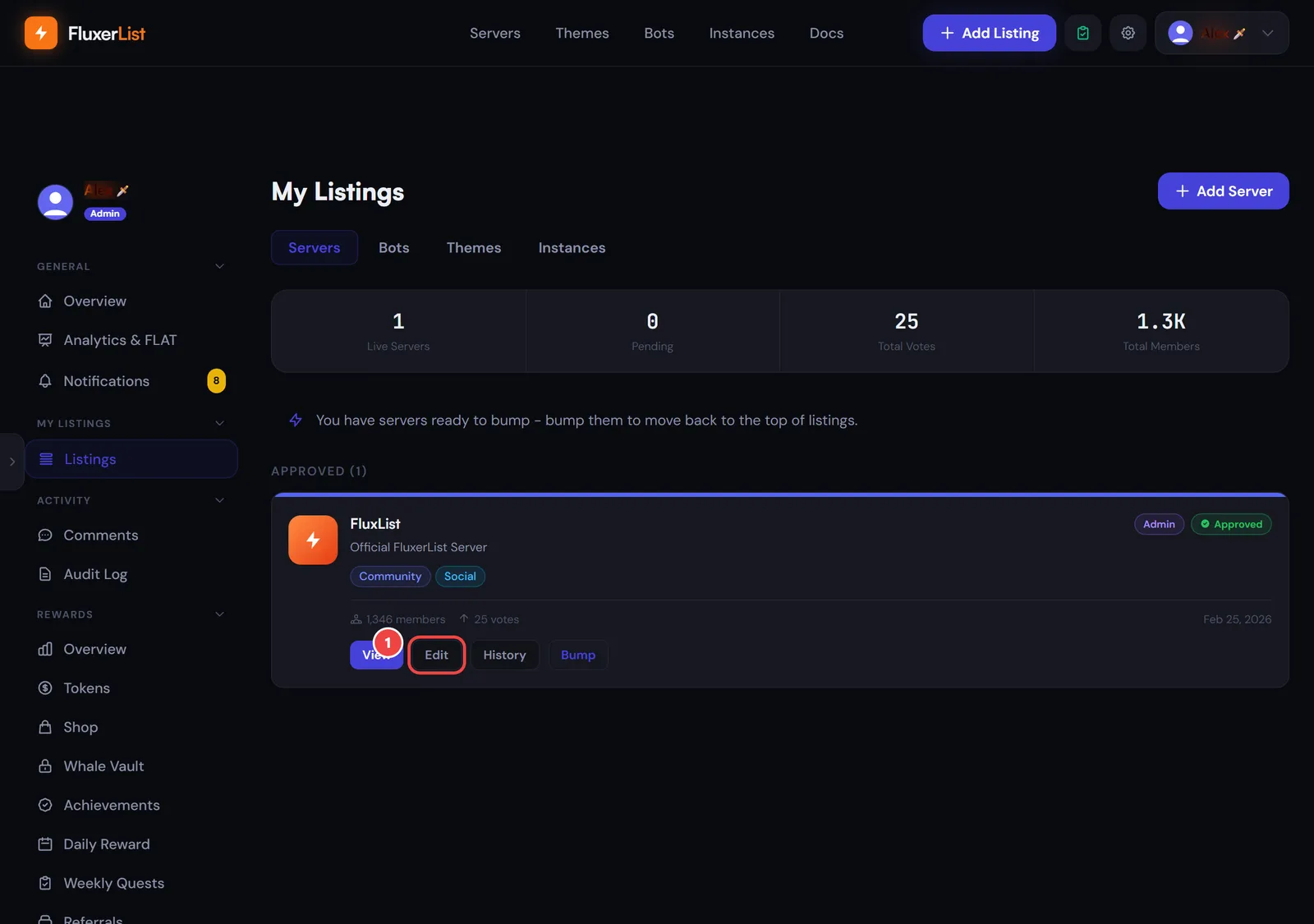
Go to your Dashboard, open Listings, and select Edit on the server you want to change.
Find your way around
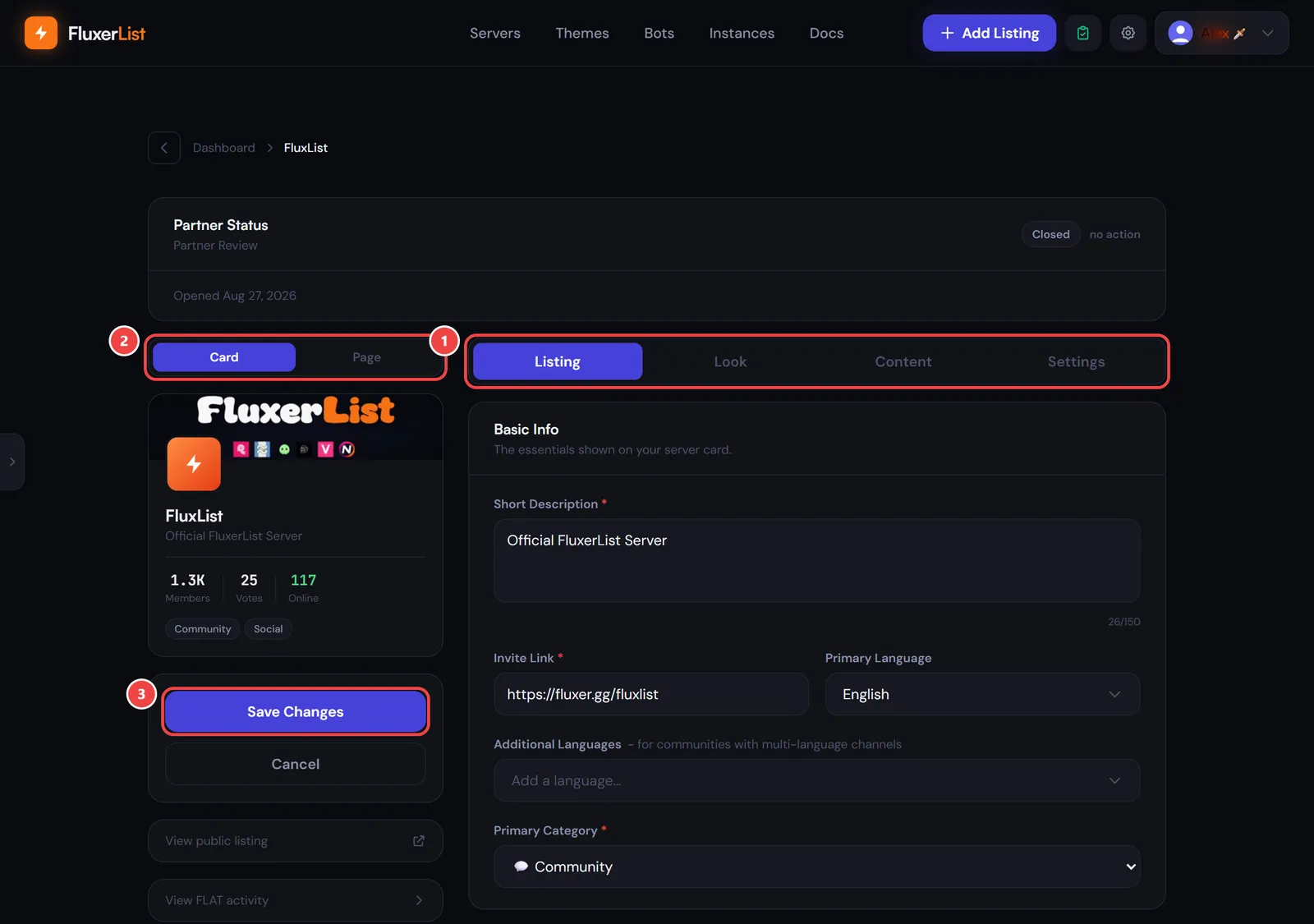
- The four tabs: Listing, Look, Content and Settings.
- The Card and Page switch above the preview (on desktop. On a phone the preview is hidden, and Save Changes and Cancel sit in a bar at the bottom of the screen). Card shows how your server looks in the server list. Page shows a simple wireframe of your detail page layout, so you can see the effect of layout changes as you make them.
- Save Changes publishes your edits. Cancel leaves without saving.
Listing tab: the basics
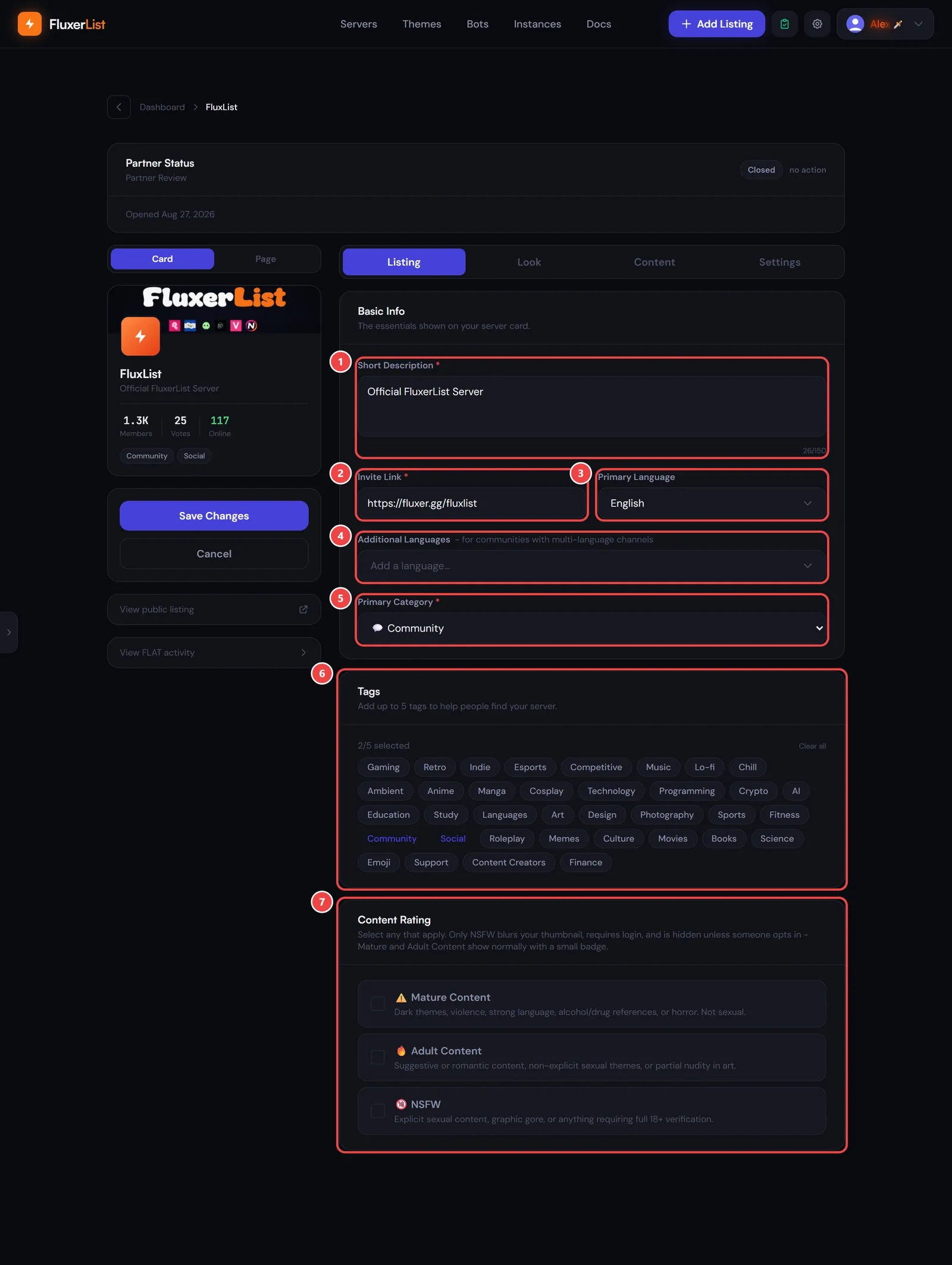
- Short Description is required, up to 150 characters. It’s the one-liner on your listing card.
- Invite Link is the permanent invite people use to join.
- Primary Language is a searchable dropdown. Select it, type a few letters to filter the list, then pick a language.
- Additional Languages is for communities with channels in more than one language.
- Primary Category is required. This is a standard dropdown, so pick the closest fit from the list that opens.
- Tags help people find you. Choose up to 5, and select a chosen tag again to remove it. Clear all removes them all.
- Content Rating is where you’re upfront about what’s in your server. Tick every one that applies. What do the content ratings mean? explains each one.
Look tab: banner, colours and layout
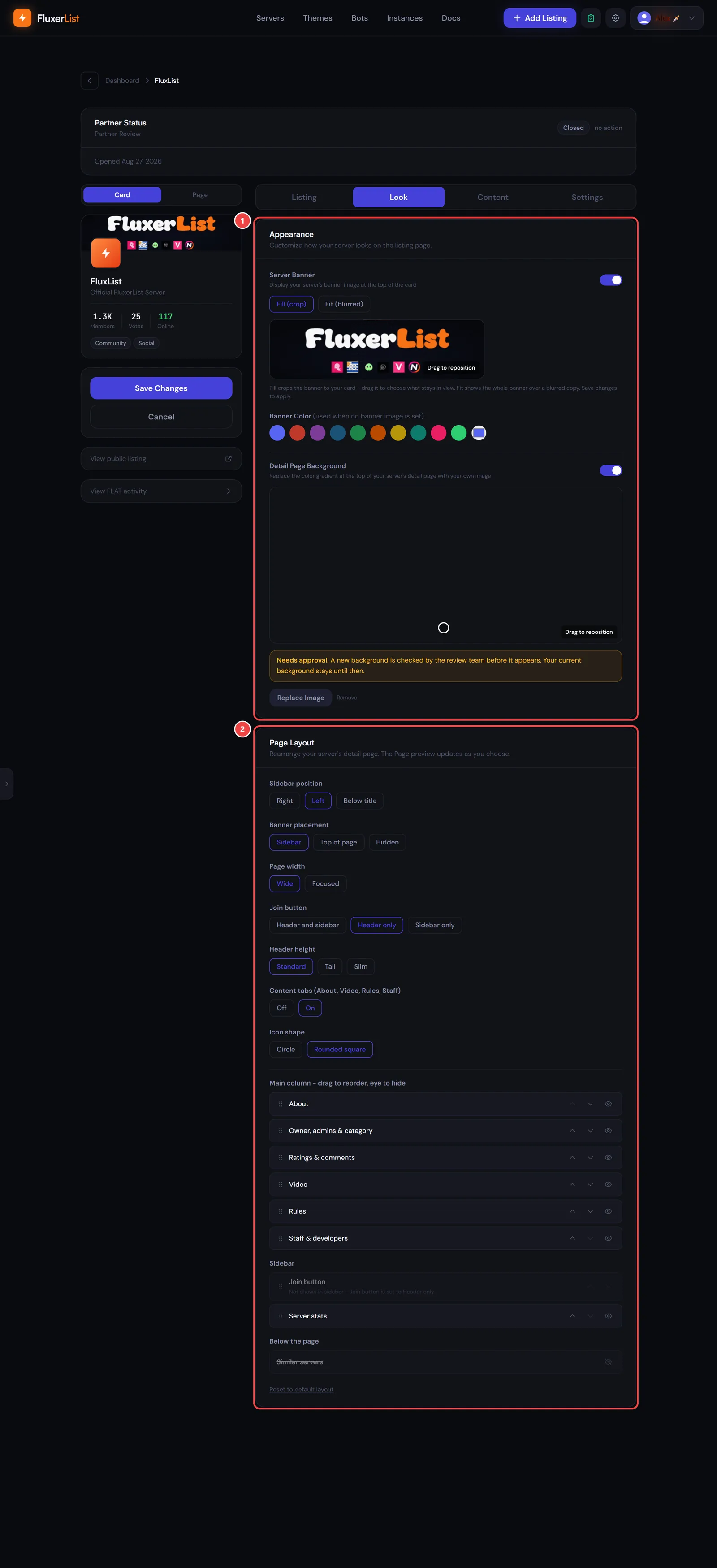
- Appearance has the Server Banner switch, which uses the banner from your Fluxer server. Choose Fill (crop) to fill the card and drag the image to pick which part stays in view, or Fit (blurred) to show the whole banner over a blurred copy of itself. Banner Color is used when there is no banner image. Detail Page Background replaces the colour gradient at the top of your server’s page with your own image.
- Page Layout controls how your detail page is arranged and lets you drag sections into a new order or hide them.
Detail Page Background and Page Layout are shop unlocks. If you haven’t bought them for this server, the editor shows an Unlock button and the options stay greyed out. See Upgrades for what each one gives you. A new background image is checked by the review team before it appears, and your current one stays until then.
Content tab: description, rules and video
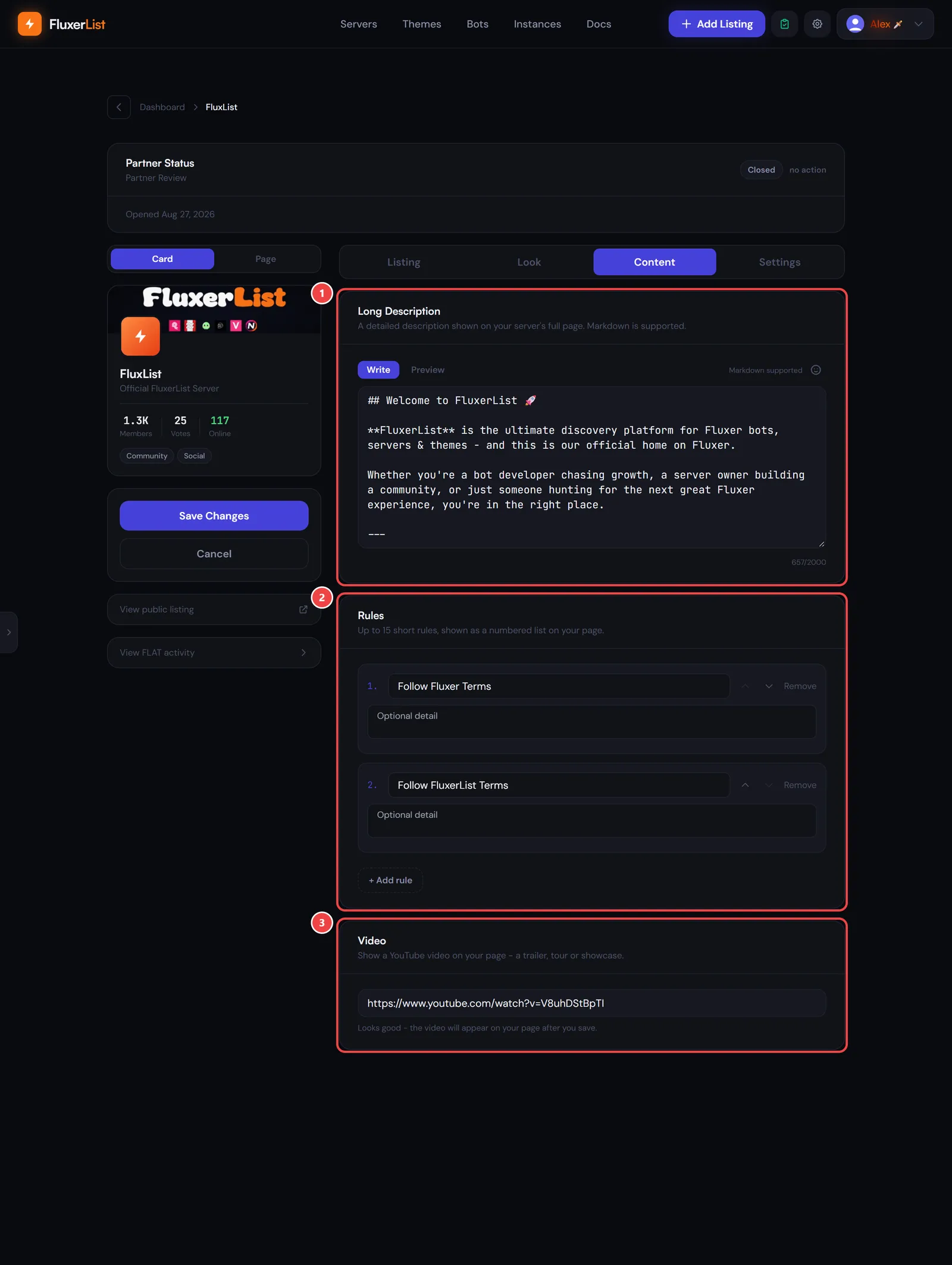
- Long Description is the longer text on your server’s own page, up to 2,000 characters. It supports Markdown. Use the Write and Preview buttons to check how it will look, and see Format your description for the syntax.
- Rules is a numbered list of up to 15 rules, each with a title and an optional detail. Use the arrows to reorder them.
- Video shows a YouTube video on your page. It needs the Page Layout unlock, and only YouTube links are accepted.
Settings tab: invites, member count and admins
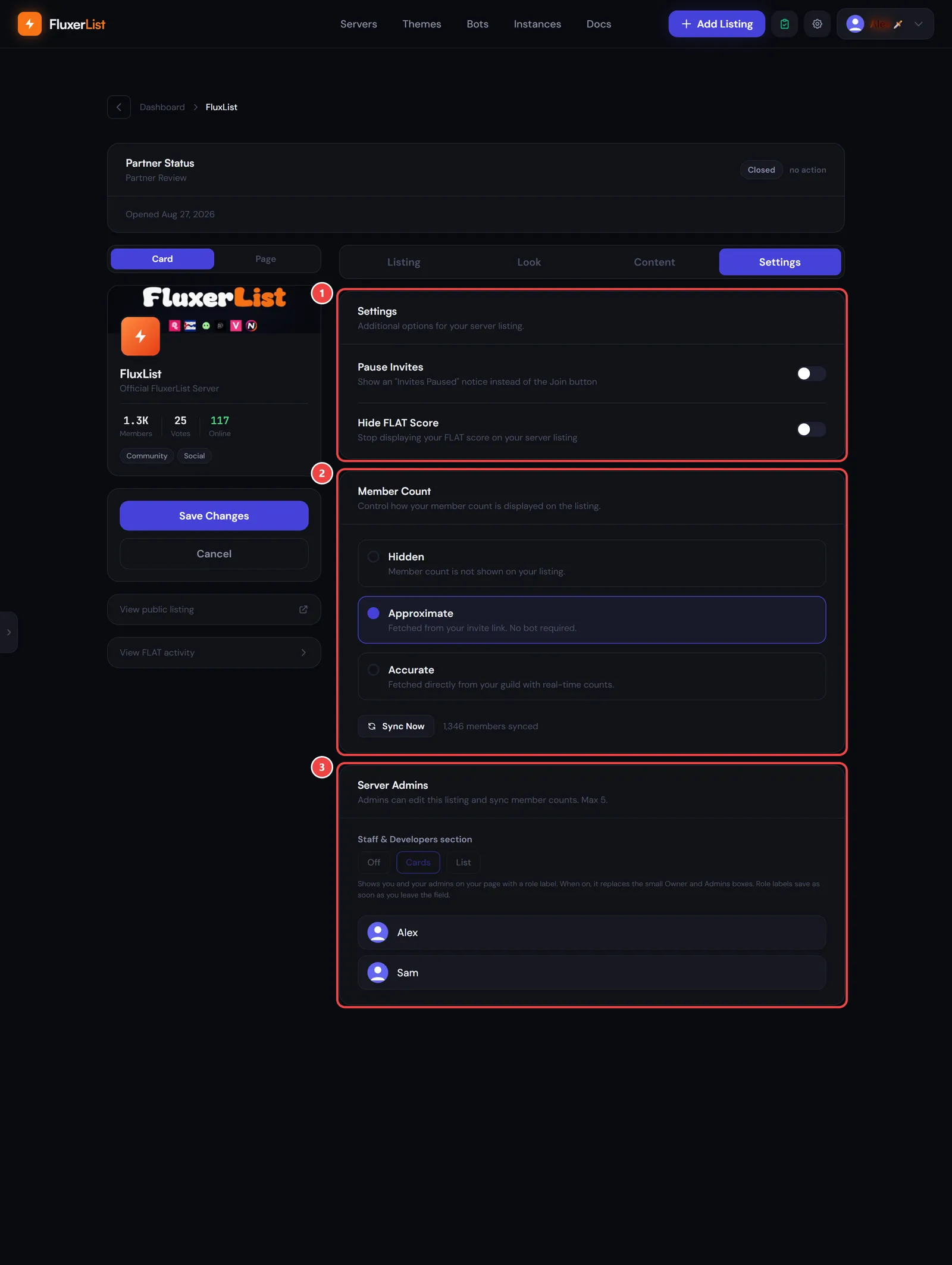
- Settings has Pause Invites, which shows an “Invites Paused” notice instead of the Join button, and Hide FLAT Score, which stops your FLAT score showing on the listing.
- Member Count can be Hidden, Approximate (read from your invite link, no bot needed), or Accurate (read straight from your server). Select Sync Now to refresh the number (it appears once you pick Approximate or Accurate).
- Server Admins lets the owner add up to 5 admins, who can edit the listing and sync member counts. The Staff & Developers switch shows you and your admins on your page as Cards or a List, each with a role label of your choice, or turns the section Off. Only the owner can change that switch, add or remove admins, or set role labels.
What applies immediately
These don’t wait for Save Changes:
- Sync Now in Member Count.
- Adding or removing a server admin, and saving a role label (a label saves as soon as you leave its field).
- Unlock buttons, which spend FL Tokens straight away.
- The Detail Page Background switch, image upload, repositioning and removal, once you’ve unlocked it. The switch appears after an image exists.
Everything else on the page waits for Save Changes. If you leave without saving, those edits are discarded.