

Add a server, step by step
You need to be signed in (see How do I log in?) and you need to own the server, because the form only lets you pick from servers you own. The whole thing takes a few minutes. Watch it once, or follow the steps below.
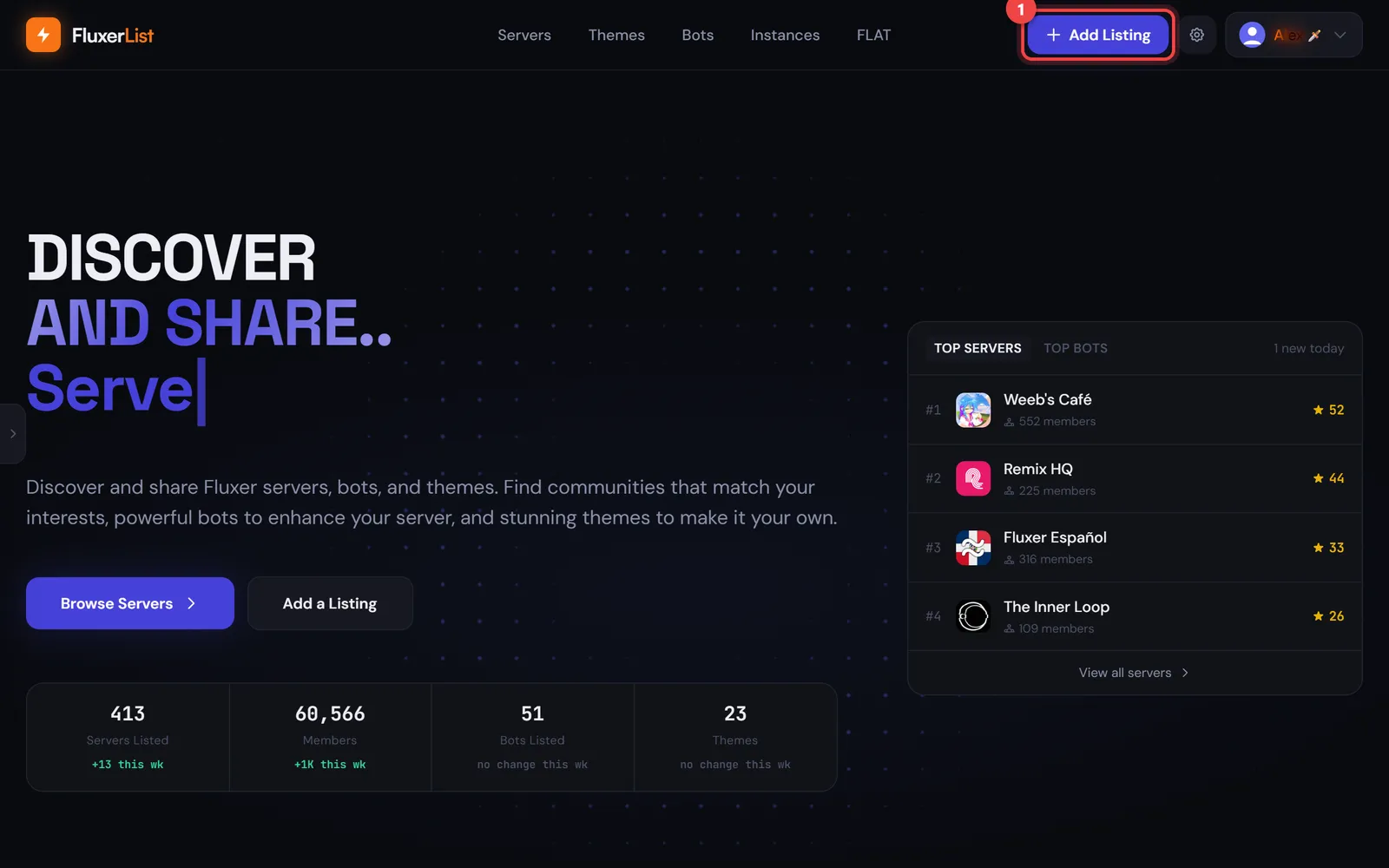
Choose Server
You’ll be asked what you’d like to add. Pick Server. (The same page is where you add a Theme, Bot, or Instance.)
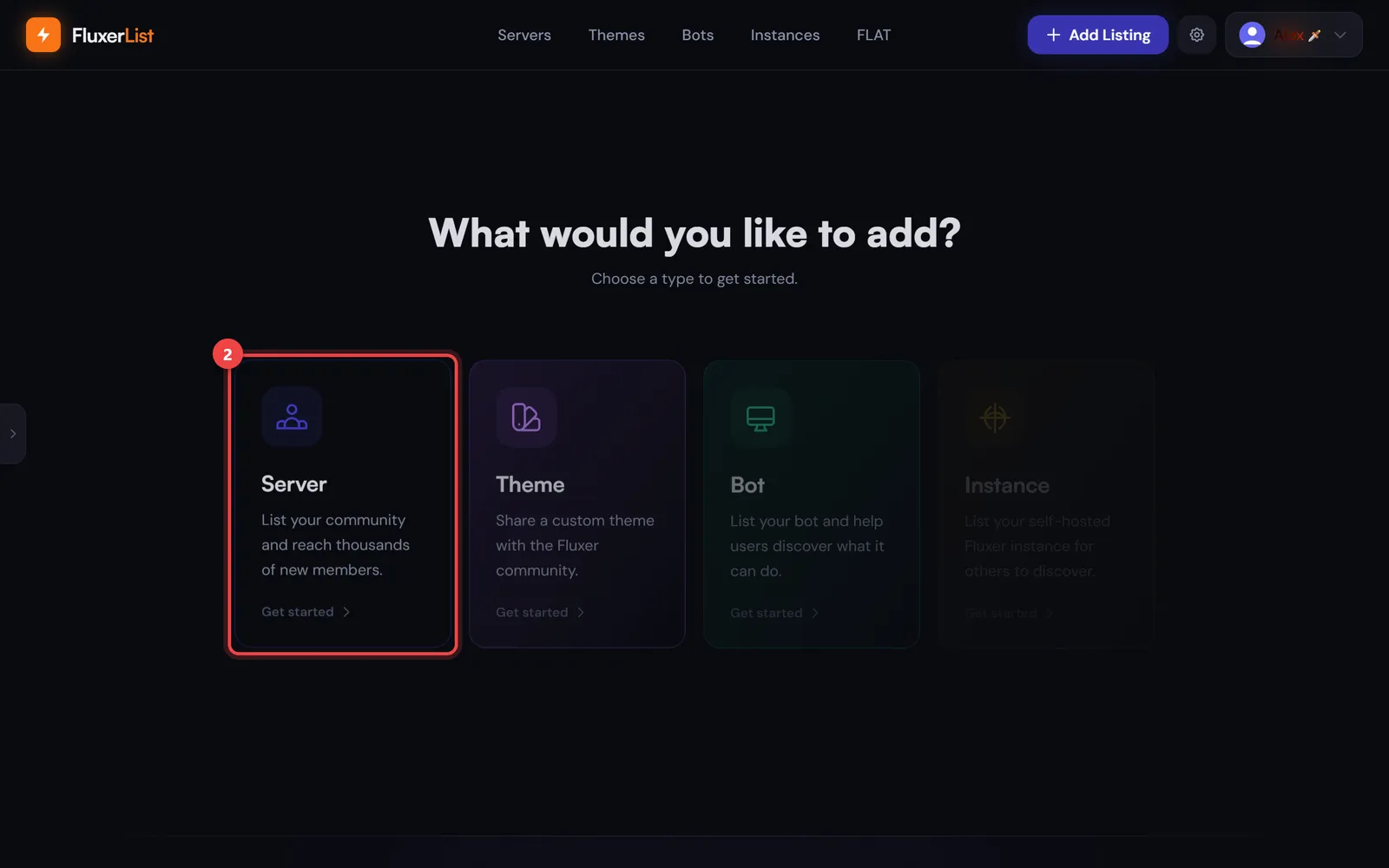
Fill in Server Info
The form has four pages: Server Info, Description, Tags and Details, then Review. On the first page:
- Pick your server from the list. It only shows servers you own.
- The name and icon fill in by themselves.
- Paste your permanent invite link. A green tick means it works.
- Select Continue.
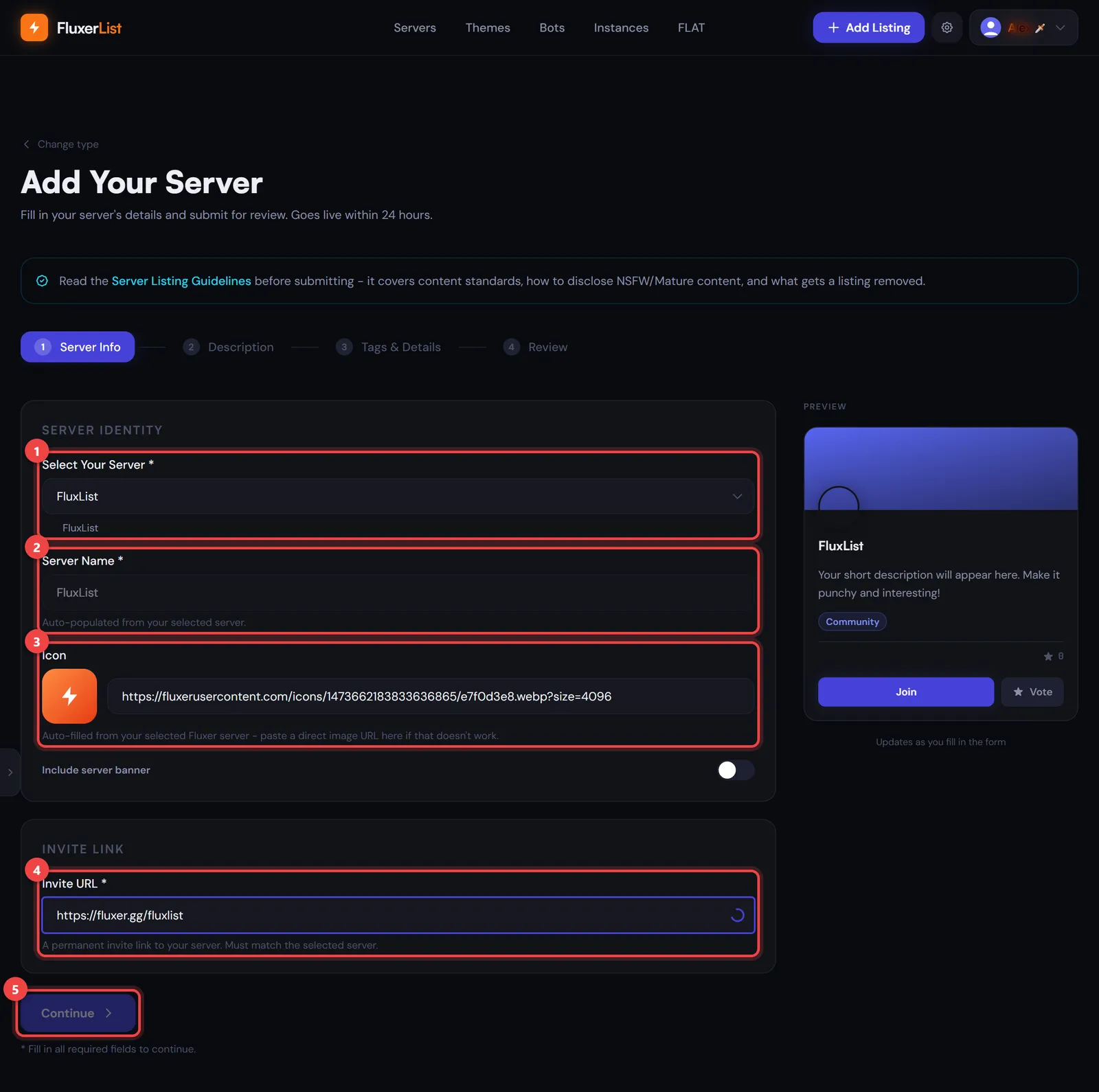
Write your description
The Short Description (marker 1) is required. It’s the one-liner shown on your listing card. The About Your Server box (marker 2) is for the longer version shown on your server’s own page. You can format it with Markdown, and there’s a Preview tab to check how it looks.
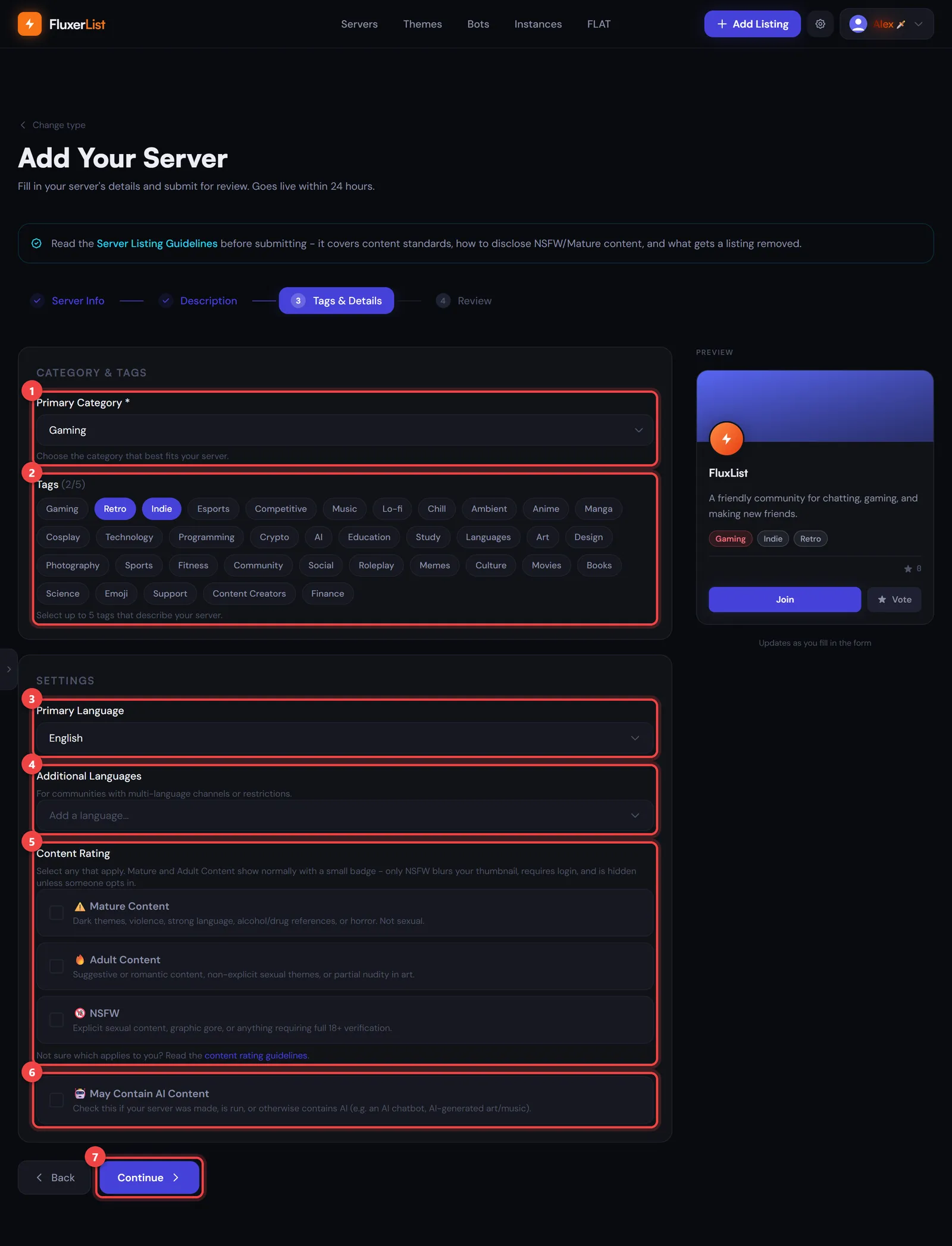
Choose category, tags and rating
- Primary Category (marker 1) is required. Pick the one that fits best.
- Tags (marker 2) help people find you. You can choose up to 5.
- Languages (markers 3 and 4): the primary language starts as English. Change it if your community speaks something else, and add extra languages if you use more than one.
- Content Rating (marker 5) and the AI content box (marker 6) are where you’re upfront about what’s in your server. What do the content ratings mean? in the FAQ explains each one.
Review and submit
Check the summary. When you’re happy, select Submit for Review (marker 2). Use Back (marker 1) if you need to change something.
The optional Add FluxerList Bot box on this page is for bumping and FLAT. See FLAT score for why you might want it.
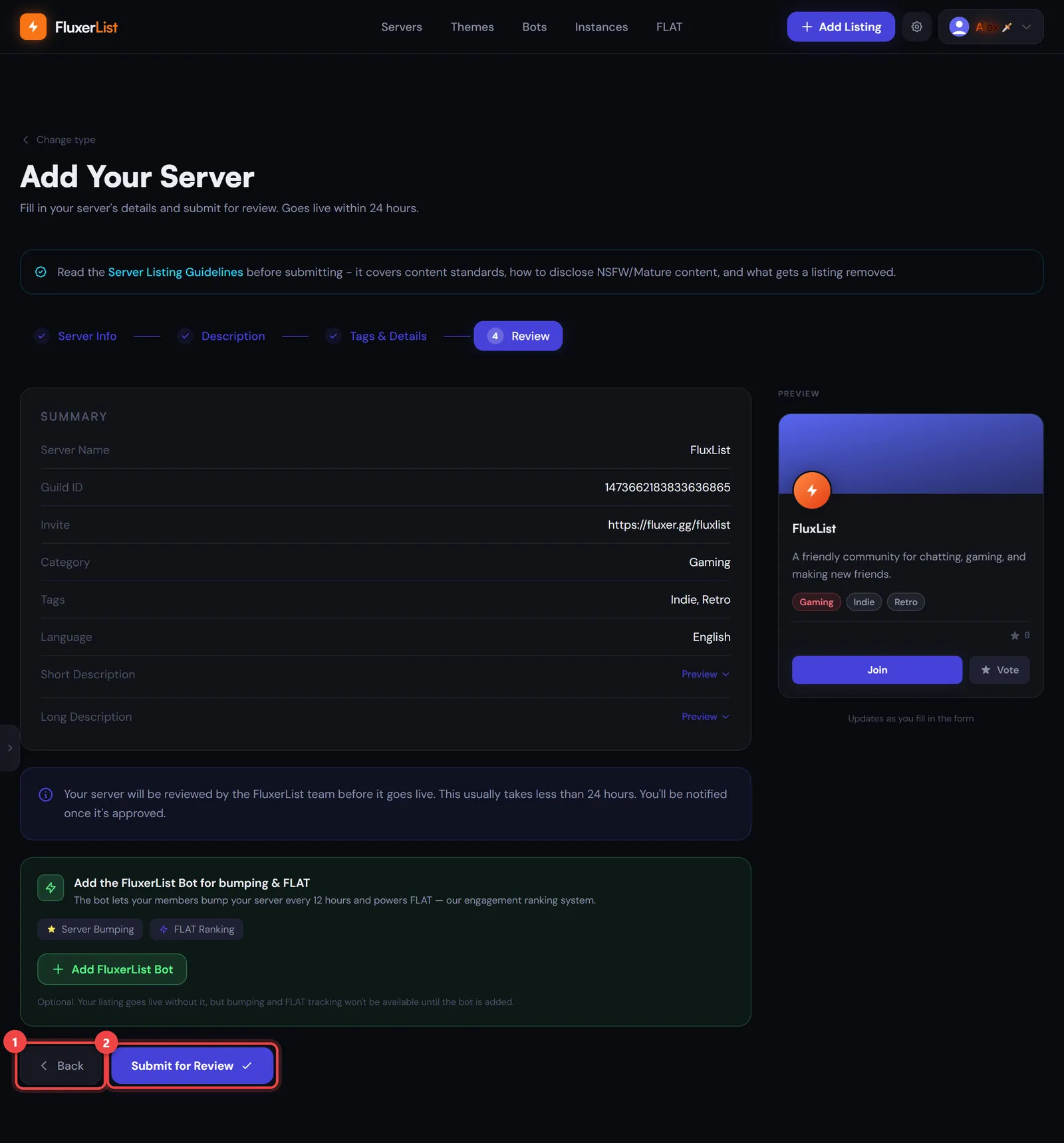
After you submit, the FluxerList team reviews your server and you’ll be notified once it’s approved. See How long does approval take? in the FAQ.