

FAQ
Never used a server list before? No problem. Every answer below is written for beginners, and wherever there’s clicking involved you’ll find screenshots with numbered red markers showing exactly where to look.
Want the full walkthrough in one place instead? Start with the Quickstart.
Browsing
What do the sorts do?
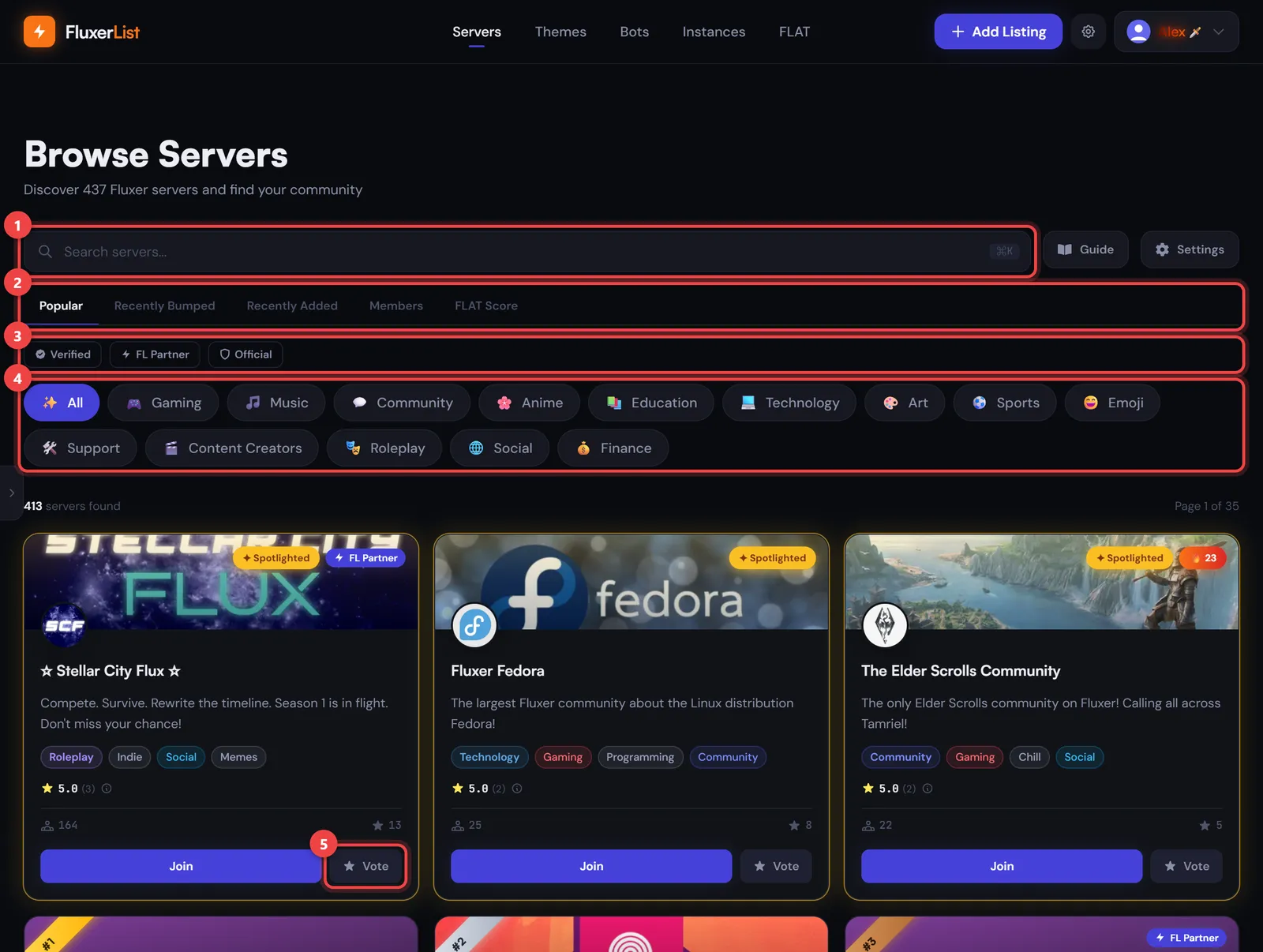
The row of tabs under the search box (marker 2) changes the order of the list:
- Popular ranks by total votes, most first.
- Recently Bumped puts the servers that were bumped most recently at the top.
- Recently Added shows servers in the order they were added, newest first.
- Members ranks by member count, largest first.
- FLAT Score ranks by how active a community is right now. See FLAT activity score.
Just below the sorts (marker 3) are three badge filters: Verified, FL Partner, and Official. Select one to show only servers with that badge.
How do categories work?
Categories are the rounded buttons under the badge filters (marker 4). They filter servers by tag. Pick Gaming or Music and only servers with that tag are shown. Select All to see everything again.
Can I search?
Yes. The search bar at the top of the page (marker 1) matches names, descriptions, and tags at the same time, so you can type a game, a topic, or part of a server’s name.
Listing servers
How do I add my server?
You need to be signed in (see How do I log in?) and you need to own the server, because the form only lets you pick from servers you own. It takes a few minutes: select Add Listing in the top bar, pick Server, and work through the four pages of the form.
After you submit, the FluxerList team reviews your server and you’ll be notified once it’s approved. See “How long does approval take?” just below.
Why can't I see my server in the list?
The server picker only shows servers you own. If yours is missing, check that you’re signed in with the same Fluxer account that owns the server. If you only moderate or belong to a server, ask the owner to add it.
How long does approval take?
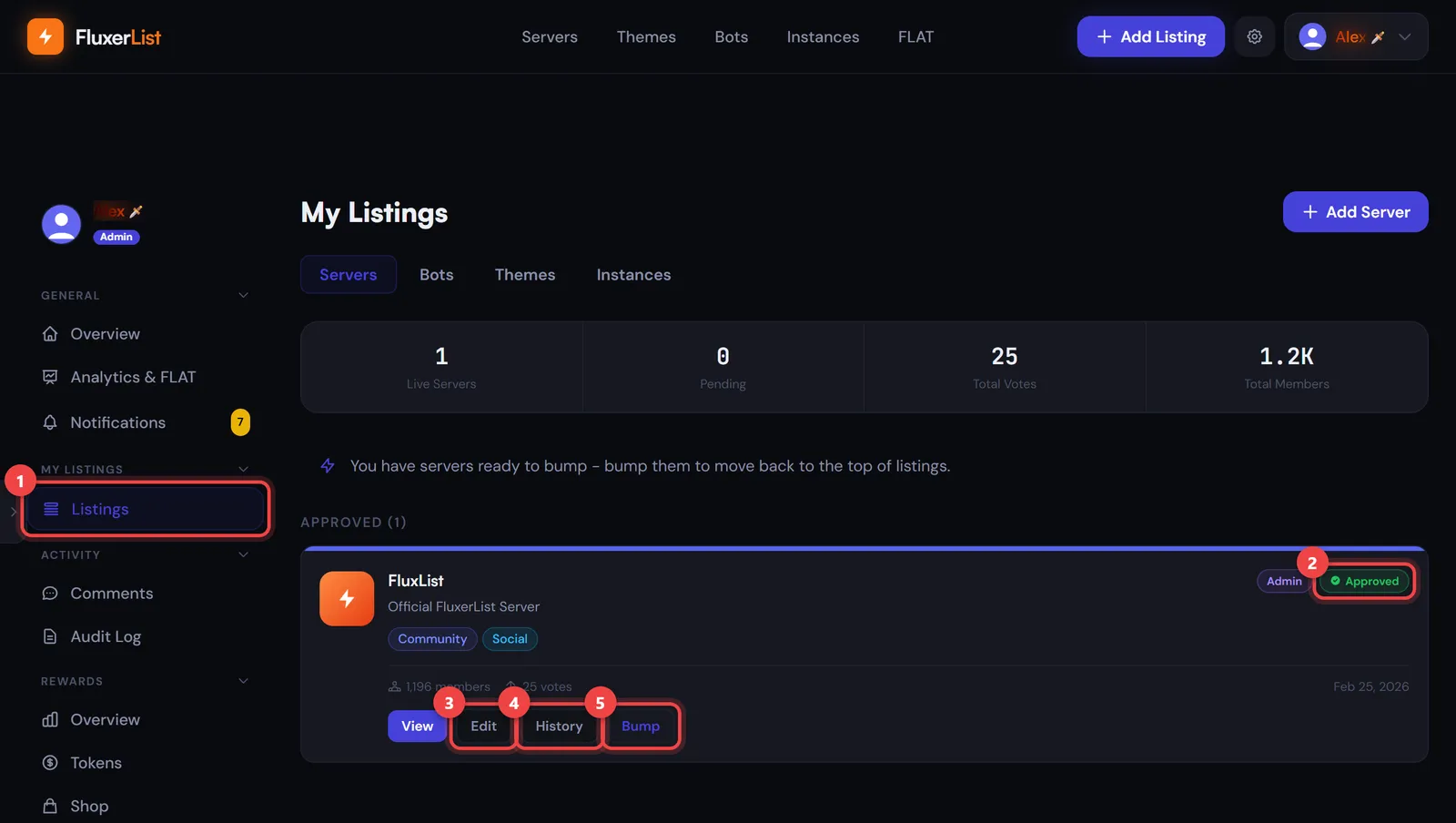
Most servers are reviewed within 24 to 48 hours (the form itself says listings go live within 24 hours). You’ll be notified when it’s approved, and you can also track the status on your dashboard: open Listings, and your server appears under a heading such as Approved. The Pending number at the top counts servers still waiting for review.
Why was my server rejected?
Common reasons are an invalid invite, a description that breaks the server listing guidelines, or missing information. Your dashboard shows notes from reviewers.
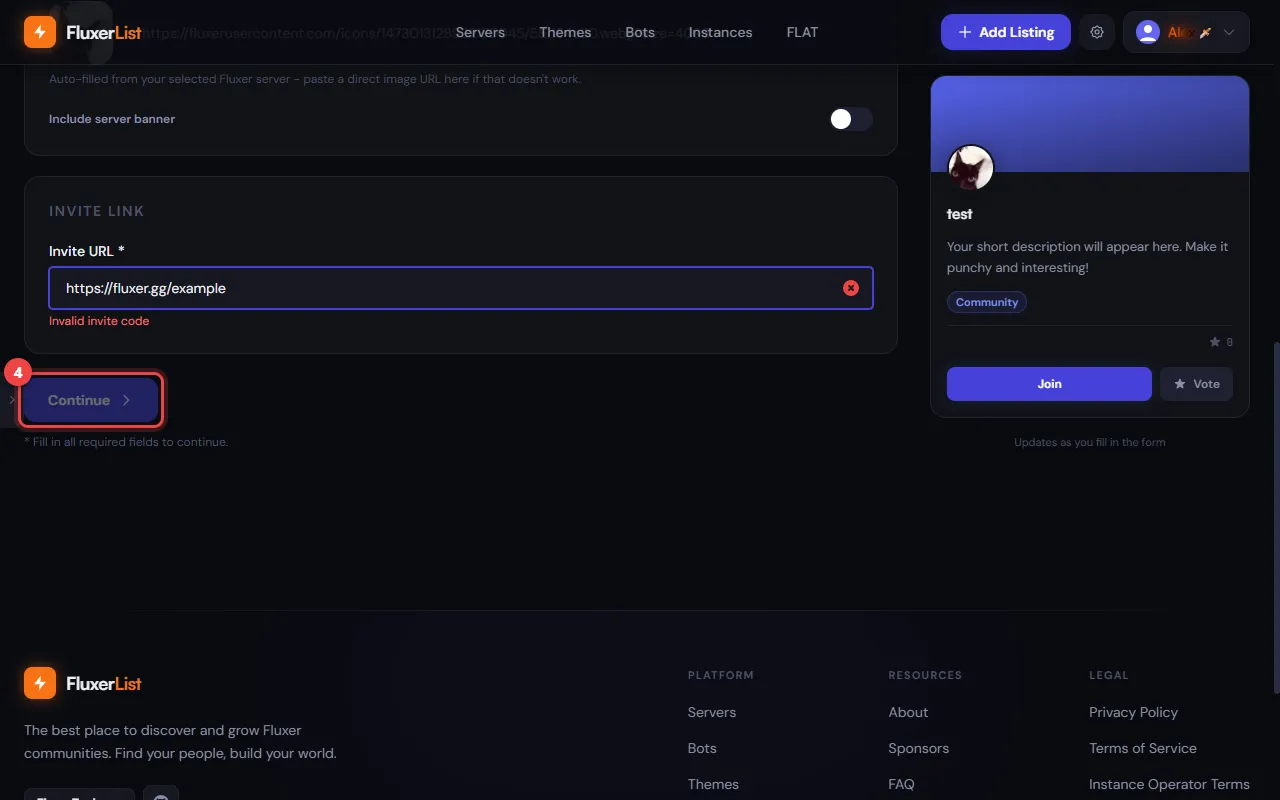
The invite is the easiest one to catch yourself, because the form checks it as you type. If the link doesn’t work you’ll see a red Invalid invite code message and the Continue button stays greyed out, so fix the link before you go on.
Can I edit or delete my listing?
Yes. Open your dashboard, go to Listings, and choose Edit (marker 3) on the server you want to change.
On the Edit page you can change the description, tags, invite, content rating, and image. There’s also a Member Count setting with three choices: Hidden (the count isn’t shown), Approximate (taken from your invite link, no bot needed), and Accurate (taken straight from your server with real-time counts).
Choose Delete to remove it. Deleting asks you to confirm first.
What content isn't allowed?
Hate speech, doxxing, scams, and undisclosed NSFW content are grounds for removal. See Server listing guidelines.
What do the content ratings mean?
When you add a server you pick any content ratings that apply. Be honest here, because undisclosed NSFW content is grounds for removal.
Mature and Adult listings show normally with a small badge. NSFW listings have their thumbnail blurred, need a login to view, and stay hidden unless someone opts in to seeing them.
Bots
How do I submit a bot?
Sign in, then go to Add and choose Bot. Read the bot guide first, since it covers everything reviewers check.
How long does bot review take?
Typically 2 to 5 days. Bot reviews are more thorough because reviewers add your bot to a private test community and check every command.
Why was my bot rejected?
The usual reasons are mismatched permissions, an invalid invite URL, missing privacy disclosures, or commands that don’t respond in time.
How many bots can I submit?
Up to 5 per account. Ask in the support server if you need more.
Bumps and votes
What is bumping?
Bumping is how you give your server a boost. It refreshes your server’s position and signals that your community is active. You can bump each server once every 12 hours.
To bump, open your dashboard, go to Listings, and select Bump on your server (marker 5). When a bump is available, the page tells you that you have servers ready to bump.
The optional FluxerList Bot also lets your members bump your server every 12 hours. See Bumps and votes.
What's the difference between a bump and a vote?
- A bump is done by the server’s owner. It refreshes your server’s position, and you can do it once every 12 hours per server.
- A vote is done by any signed-in visitor. It’s a thumbs-up for a server you like, and it counts towards the Popular sort.
FLAT score
What is FLAT?
Fluxer List Activity Tracking. It’s a score of how active a community is right now, a bit like a “how lively is this server?” meter. Higher means more going on lately. You can sort the server list by it using the FLAT Score tab. See FLAT activity score.
To see the activity for your own server, open Edit on your listing and select View FLAT activity.
Do I need the bot for FLAT?
Yes. When you add a server, the review page offers the FluxerList Bot as an optional extra. Your listing goes live without it, but FLAT tracking (and member bumping) won’t be available until the bot is added.
Does FLAT read my members' messages?
No. It only records counts, meaning how much activity there was, never what anyone said. Message content is never read, stored, or transmitted, and no user IDs are stored.
Can I opt out?
Yes. Any server owner can turn tracking off from their server settings. The server stays discoverable through search and categories, so you’re not hidden from the list by opting out.
Why does my score drop when nothing changed?
FLAT uses time decay, which means recent activity counts for more than older activity. Think of it like a leaderboard that keeps forgetting the past: a quiet few days lowers a score that was propped up by an earlier busy spell. Keeping the conversation going keeps the score up.
FL Tokens
How do I earn tokens?
FL Tokens are FluxerList’s on-site points. Vote, bump, check in daily, finish weekly quests, and refer friends to earn them. See Earn and spend tokens.
Can I cash tokens out?
No. FL Tokens are an on-site currency with no cash value.
Can I stop people gifting me tokens?
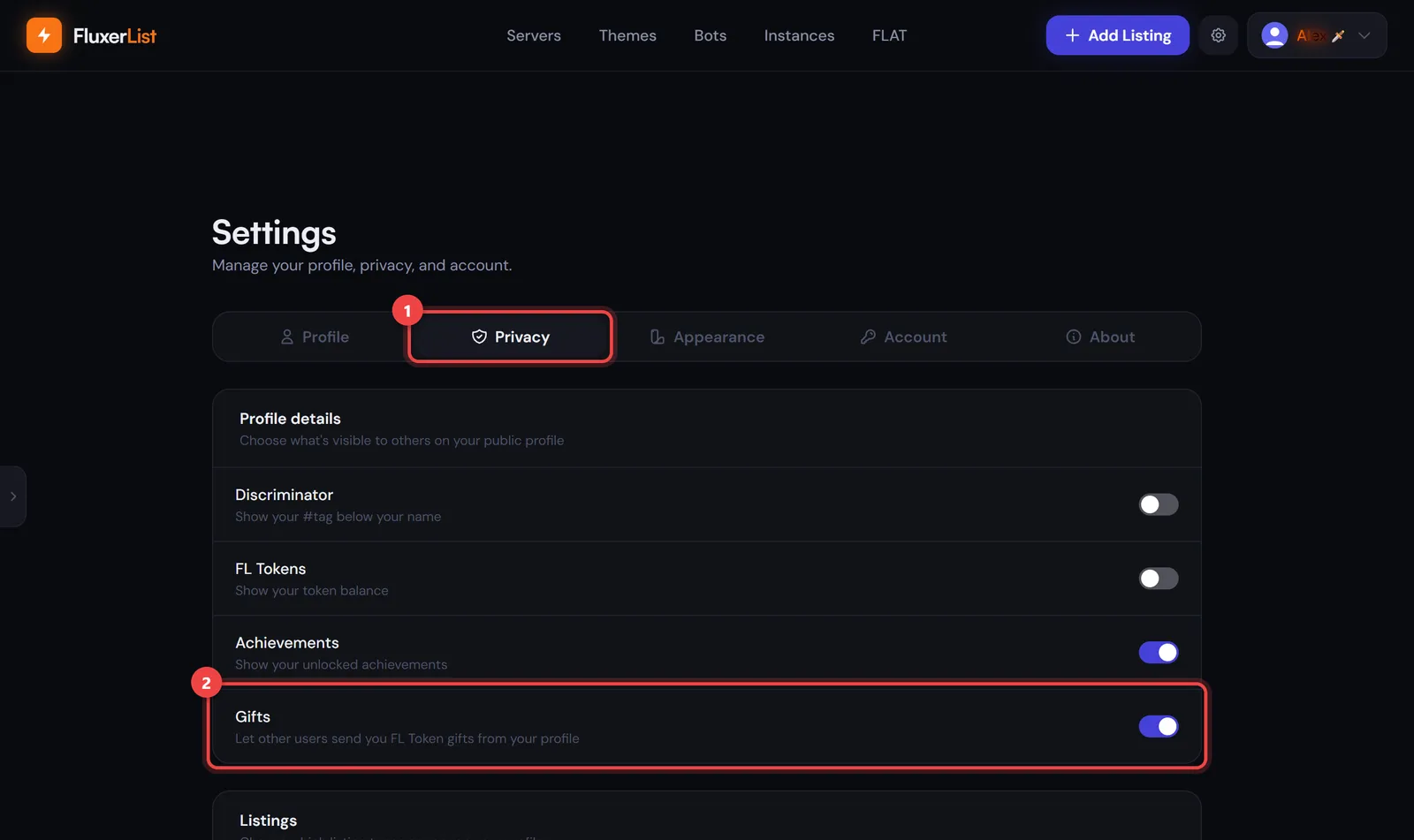
Account and privacy
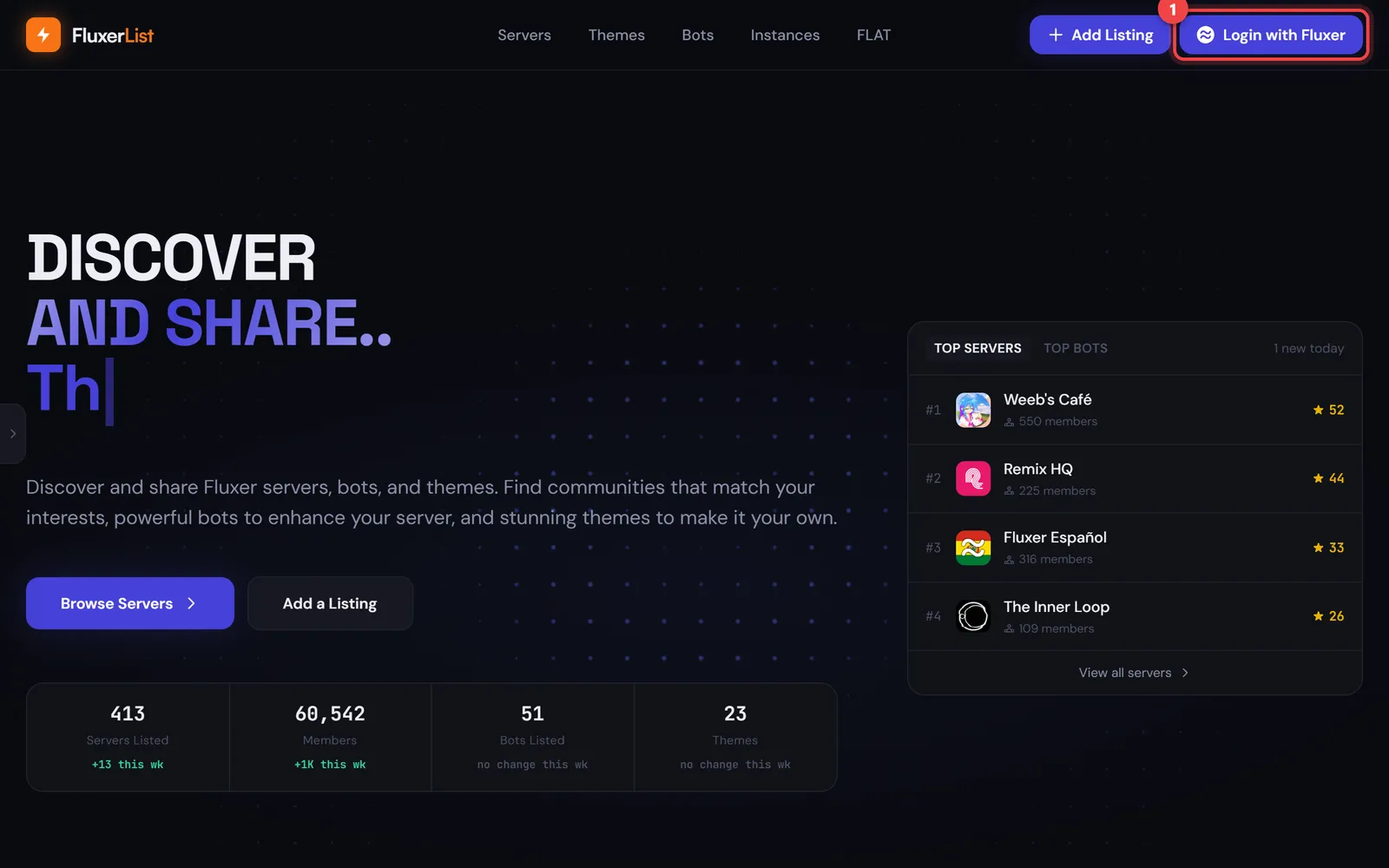
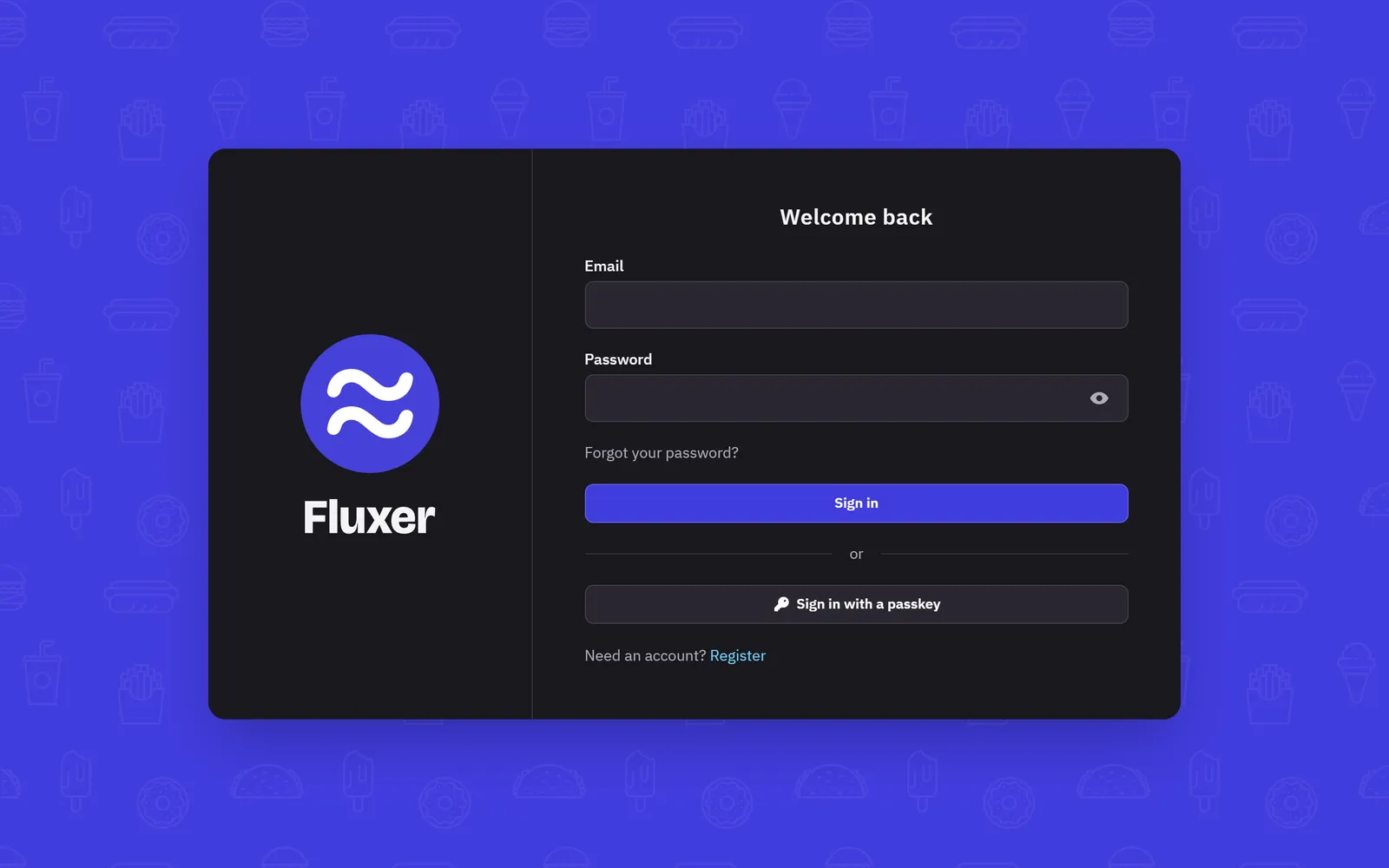
How do I log in?
FluxerList uses Fluxer OAuth, which means you sign in with your existing Fluxer account. There’s no separate FluxerList account to create.
Does FluxerList collect my email?
No. It asks Fluxer for your username, display name, and avatar, plus the list of your servers so the Add form can show the ones you own. The exception is a self-hosted instance submission, where you provide an operator contact of your choosing.
Is FluxerList officially affiliated with Fluxer?
No. FluxerList is an independent, community-run project and is not officially affiliated with or endorsed by Fluxer Platform AB.
Outages
Is FluxerList or the bot down?
Check the status page. It shows whether the site, the bot, and other FluxerList services are up, and lists incidents as they’re handled. If everything shows as operational and something still isn’t working, ask in the support server.